Saturday, 10 January 2015

Invoking web-service to consume web methods(Basic Web-Services Part4)


1)Using SoapUI Tool  :- Create new project in tool then provide WSDL url and project name then click ok.


Now click on any methods on left hand side and then select any request to view output


2)Using Java Client :-  We need to write a java client to invoke the web-service

package com.krishna.webservice.basics;

import java.net.MalformedURLException;
import java.net.URL;

import javax.xml.namespace.QName;
import javax.xml.ws.Service;

public class WebServiceClient {

public static void main(String args[]){

try {
URL url = new URL("http://127.0.0.1:9876/ws?wsdl");
QName qname = new QName("http://basics.webservice.krishna.com/","NewJoinesImplService");
Service service = Service.create(url, qname);
JoiningFormalities joiningFormalities= service.getPort(JoiningFormalities.class);
System.out.println("Message :-"+joiningFormalities.showWelcomeGreetings());
System.out.println("Role :-"+joiningFormalities.getEmployeeRole());
} catch (MalformedURLException e) {
// TODO Auto-generated catch block
e.printStackTrace();
}
}
}


Output :- 


First Webservice program for a fresh Learner(Basic WebService Part3)

Web-service :- Its a service built and deployed in server. Which can be accessed by any type of application irrespective of language platform. For more information please refer to my previous tutorials.

Service end point interface :-  Create an interface which a blue print for your web-service. If you annotate your Interface with @WebService then your interface is eligible for web service. If you annotate your methods as @WebMethod then methods inside the interface are exposed as web-service methods.

package com.krishna.webservice.basics;

import javax.jws.WebMethod;
import javax.jws.WebService;

@WebService
public interface JoiningFormalities {

@WebMethod
public String getEmployeeRole();

    @WebMethod
public String showWelcomeGreetings();
}

Service implementation bean :- We need to create implementation class for our service interface. If we annotate our class with @webservice and point it to our interface then it will become implementation of our service.

package com.krishna.webservice.basics;

import javax.jws.WebService;

@WebService(endpointInterface="com.krishna.webservice.basics.JoiningFormalities")
public class NewJoinesImpl implements JoiningFormalities {

@Override
public String getEmployeeRole() {  
return "Team Lead";
}

@Override
public String showWelcomeGreetings() {
return "Welcome Krishna";
}

}

Publishing web-service :- Generally we publish webservices on application servers but using Endpoint class we can publish to our personal computer. (127.0.0.1) is our computer loopback address. 

package com.krishna.webservice.basics;

import javax.xml.ws.Endpoint;

public class PublishWebservice {
public static void main(String args[]){
 
Endpoint.publish("http://127.0.0.1:9876/ws", new NewJoinesImpl());
}
}

Testing Webservice by opening a browser :- 


WSDL file :- 

<?xml version="1.0" encoding="UTF-8"?>
<definitions xmlns:soap="http://schemas.xmlsoap.org/wsdl/soap/" xmlns:tns="http://basics.webservice.krishna.com/" xmlns:xsd="http://www.w3.org/2001/XMLSchema" xmlns="http://schemas.xmlsoap.org/wsdl/" targetNamespace="http://basics.webservice.krishna.com/" name="NewJoinesImplService">
<types>
<xsd:schema>
<xsd:import namespace="http://basics.webservice.krishna.com/" schemaLocation="http://127.0.0.1:9876/ws?xsd=1"></xsd:import>
</xsd:schema>
</types>
<message name="getEmployeeRole">
<part name="parameters" element="tns:getEmployeeRole"></part>
</message>
<message name="getEmployeeRoleResponse">
<part name="parameters" element="tns:getEmployeeRoleResponse"></part>
</message>
<message name="showWelcomeGreetings">
<part name="parameters" element="tns:showWelcomeGreetings"></part>
</message>
<message name="showWelcomeGreetingsResponse">
<part name="parameters" element="tns:showWelcomeGreetingsResponse"></part>
</message>
<portType name="JoiningFormalities">
<operation name="getEmployeeRole">
<input message="tns:getEmployeeRole"></input>
<output message="tns:getEmployeeRoleResponse"></output>
//List of operations under this webservice
</operation>
<operation name="showWelcomeGreetings">
<input message="tns:showWelcomeGreetings"></input>
<output message="tns:showWelcomeGreetingsResponse"></output>
</operation>
</portType>
<binding name="NewJoinesImplPortBinding" type="tns:JoiningFormalities">
<soap:binding transport="http://schemas.xmlsoap.org/soap/http" style="document"></soap:binding>
<operation name="getEmployeeRole">
<soap:operation soapAction=""></soap:operation>
<input>
<soap:body use="literal"></soap:body>
</input>
<output>
<soap:body use="literal"></soap:body>
</output>
</operation>
<operation name="showWelcomeGreetings">
<soap:operation soapAction=""></soap:operation>
<input>
<soap:body use="literal"></soap:body>
</input>
<output>
<soap:body use="literal"></soap:body>
</output>
</operation>
</binding>
//Service end point declaration
<service name="NewJoinesImplService">
<port name="NewJoinesImplPort" binding="tns:NewJoinesImplPortBinding">
<soap:address location="http://127.0.0.1:9876/ws"></soap:address>
</port>
</service>
</definitions>


Sunday, 4 January 2015

Working with MLS in web content managment

MLS :- Multilingual site contains information localized across different users and different languages. MLS is available out of the box from portal8.0.0.1 and for below versions. We need to download it from greenhouse.

Step1(Registering MLS to portal) :-  To register you can run below two tasks{Make sure WasPassword and PortalAdminPwd is set in wkplc file before running below tasks}

  • ConfigEngine.bat register-wcm-mls
  • ConfigEngine.bat deploy-wcm-mls

Step2(Registering to virtual portal ):-  If you have virtual portal you need run below extra config engine task.

ConfigEngine.bat import-wcm-mls-data  -DVirtualPortalContext=dpath

Step3(Configuring Meber fixer tool ) :-  Run below task for Member fixer tool.

ConfigEngine.bat run-wcm-admin-task-member-fixer -DPortalAdminId=wpsadmin -DPortalAdminPwd=wpsadmin -DWasUserId=wpsadmin -DWasPassword=wpsadmin -Dlibrary=MLConfiguration_v7 -Dfix=true -DinvalidDn=update -DmismatchedId=update -DaltDn=update

Step4 :- Now navigate to administration you can find MLS copy link under administration using which we can copy library's from one language to other.

Creating credential vault slot for syndication

Overview :- To create a syndicator using which we can get all libraries from configured system.

Step1 :- Navigate till portal server bin and save below xml as CreateSyndSlot.xml

<?xml version="1.0" encoding="UTF-8"?>
<request
    xmlns:xsi="http://www.w3.org/2001/XMLSchema-instance"
    xsi:noNamespaceSchemaLocation="PortalConfig_8.0.0.xsd"
    type="update" create-oids="true">

    <!-- Sample for creating a new credential vault slot. This script creates a     -->
    <!-- credential vault resource and a shared slot in the Default Admin Segment   -->
    <portal action="locate">
         <credential-segment action="locate" adapter-type="default" name="DefaultAdminSegment"
             user-mapped="false">
             <description>Default Admin Segment</description>
             <credential-slot action="update" active="false" name="syndication-slot"
                 resource="syndication-resource" secrettype="userid-password" system="true">
                 <localedata locale="en">
                     <description>used for syndicator and subscriber pair</description>
                 </localedata>
                 <password-secret action="create" external-id="padmin"
                     user="padmin">padmin</password-secret>
             </credential-slot>
         </credential-segment>
    </portal>
</request>

Step2 :- Execute below command
xmlaccess.bat -in CreateSyndSlot.xml -out slot-out.xml -url http://localhost:10039/wps/config -user wpsadmin -password wpsadmin

Step3 :- Now navigate to portal administration click on subscribers and click on subscriber then enter the syndicator url , select above credential slot click ok then select the library you want to syndicate. Then select allitems then click ok.

Step4 :- After completing all these click on refresh button syndication will become active when it will become idle syndication is done.


Wednesday, 31 December 2014

WCM Rest

http://infolib.lotus.com/resources/portal/8.0.0/doc/en_us/PT800ACD004/wcm/wcm_rest.html

Table 1. Query parameters
ParameterDetails
approverThis parameter is used to query items with a specific approver.
A user ID must be specified when using this parameter.
For example:
/query?approver=userid
authoringtemplateidThis parameter is used to query items with a specific authoring template ID.
For example:
/query?authoringtemplateid=wcmrest:18cfc80c-a490-4d75-9057-fed3db89de53
authorThis parameter is used to query items with a specific author.
 A user UID must be specified when using this parameter.
For example:
/query?author=uid=WCMUT_Editor_A,o=defaultWIMFileBasedRealm
categoryidThis parameter is used to query items with a specific category ID.
For example:
query?categoryid=wcmrest:18cfc80c-a490-4d75-9057-fed3db89de53
createdafterThis parameter is used to query items created after a specific date and time.
For example:
/query?createdafter=2011-01-11T11:43:29.0150Z
createdbeforeThis parameter is used to query items created before a specific date and time.
For example:
/query?createdbefore=2011-01-11T11:43:29.0150Z
creatorThis parameter is used to query items with a specific creator.
A user UID must be specified when using this parameter.
For example:
/query?creator=uid=WCMUT_Editor_A,o=defaultWIMFileBasedRealm
dateformatThis parameter is used to define the date format of query parameters.
For example:
/query?dateformat=mm-dd-yyyy&createdbefore=12-31-2011
If a date format not specified, then the default format yyyy-MM-dd'T'HH:mm:ssz is used.
depthThis parameter is used with the parentid and is used to define whether to search for all descendants of a parent, or just the immediate children of a parent item.
For example, to query only the immediate children of an item, you add &depth=CHILDREN to the query:
/query?parentid=wcmrest:18cfc80c-a490-4d75-9057-fed3db89de53&depth=CHILDREN
To query all descendants of an item, you add &depth=DESCENDANTS to the query::
/query?parentid=wcmrest:18cfc80c-a490-4d75-9057-fed3db89de53&depth=DESCENDANTS
expireafterThis parameter is used to query items that have expired after a specific date and time.
For example:
/query?expireafter=2011-01-11T11:43:29.0150Z
expirebeforeThis parameter is used to query items that were expired before a specific date and time.
For example:
/query?expirebefore=2011-01-11T11:43:29.0150Z
idThis parameter is used to query an item with a specific ID.
For example:
/query?id=wcmrest:18cfc80c-a490-4d75-9057-fed3db89de53
keywordThis parameter is used to query items that are profiled with a specific keyword.
For example:
/query?keyword=keywordValue
lastmodifiedafterThis parameter is used to query items that were last modified after a specific date and time.
For example:
/query?lastmodifiedafter=2011-01-11T11:43:29.0150Z
lastmodifiedbeforeThis parameter is used to query items that were last modified before a specific date and time.
For example:
/query?lastmodifiedbefore=2011-01-11T11:43:29.0150Z
lastmodifierThis parameter is used to query items that were last modified by a specific user. A user UID must be specified when using this parameter.
For example:
/query?lastmodifier=uid=WCMUT_Editor_A,o=defaultWIMFileBasedRealm
libraryidThis parameter is used to query items that are stored in a specific library.
For example:
/query?libraryid=uid=WCMUT_Editor_A,o=defaultWIMFileBasedRealm
namelikeThis parameter is used as a wildcard query for items with names like the specified namelike parameter.
For example:
/query?namelike=nameApproxValue%
nameThis parameter is used to query an item with a specific name.
For example:
/query?name=nameValue
ownerThis parameter is used to query items with a specific owner. A user UID must be specified when using this parameter.
For example:
/query?owner=uid=WCMUT_Editor_A,o=defaultWIMFileBasedRealm
pagesizeThis parameter is used to restrict the number of items returned by a query to a set number. It can be used with the page parameter to return specific pages of results.
For example, to restrict the number of queries to be returned to 5:
/query?type=PresentationTemplate&pagesize=5
pageThis parameter is used with the pagesize parameter to define what set of results to display. For example, if pagesize is set to 5, and the pageparameter is set to 2, then only results 6 to 10 will be displayed.
For example:
/query?type=PresentationTemplate&pagesize=5&page=2
parentidThis parameter is used to query items that are the children of a specific parent item.
For example:
/query?parentid=wcmrest:18cfc80c-a490-4d75-9057-fed3db89de53
You can use the depth parameter to define whether to search for all descendants of a parent, or just the immediate children of a parent item.
projectidThis parameter is used to query items that are linked to a specific project.
For example:
/query?projectid=wcmrest:18cfc80c-a490-4d75-9057-fed3db89de53
projectstateThis parameter is used to query items that are linked to a project with a specific state. The following values can be used with this parameter:
  • ACTIVE
  • SYNDICATING
  • PENDING
  • PUBLISHING
  • PUBLISHED
  • PUBLISHED_FAILED
For example, to query items linked to projects with a state of "active" you would use the following query:
/query?projectstate=ACTIVE
publishafterThis parameter is used to query items that have been published after a specific date and time.
For example:
/query?publishafter=2011-01-11T11:43:29.0150Z
publishbeforeThis parameter is used to query items that were published before a specific date and time.
For example:
/query?publishbefore=2011-01-11T11:43:29.0150Z
sortThe sort parameter is appended to queries to determine how query results are sorted. The following values can be used with the sort parameter.
  • author
  • created
  • modified
  • name
  • title
  • parents
The values _ascending or _descending are appended to the query to determine sort order.
For example, to sort a presentation template query in ascending order of creation, you would use:
/query?type=PresentationTemplate&sort=created_ascending
To sort a presentation template query in descending order of creation, you would use:
/query?type=PresentationTemplate&sort=created_descending
If _ascending or _descending are not specified, the results as displayed in ascending order.
stateThis parameter is used to query items that are in a specific state. The following values can be used with this parameter:
  • DRAFT
  • PUBLISHED
  • EXPIRED
For example:
/query?state=PUBLISHED
titlelikeThis parameter is used as a wildcard query for items with titles like the specified titlelike parameter.
For example:
/query?titlelike=nameApproxValue%
titleThis parameter is used to query an item with a specific title.
For example:
/query?title=titleValue
typeThis parameter is used to query items of a specific item type.
For example, to query a list of components::
/query?type=LibraryHTMLComponent
workflowidThis parameter is used to query items that use a specific workflow.
For example:
/query?workflowid=wcmrest:8d25860b-7a5c-4015-9cd5-bdcc60ce14bb
workflowstageidThis parameter is used to query items that are currently active within a specific workflow stage.
For example:
/query?workflowstageid=wcmrest:18cfc80c-a490-4d75-9057-fed3db89de53


Thursday, 11 December 2014

Different ways of delivering web content in WCM

Delivering web content :-  The core concept of this topic is how many ways can we display a WCM content.I have mentioned below all possible ways to display a WCM content

Three ways :-
1) Display it via servlet
2) Display it in a portal page
3) Pre render delivery

1) Display it in a servlet :- Using this WCM servlet you can display WCM content without using web-sphere portal server.
Table 1. Service options
Service optionDetails
srv=cmpntThis will retrieve a component either from the component library or from a site area or content item. You must also specify the following:
source=
This determines where the component is being sourced from. This is either:
  • library
  • sitearea
  • content
cmpntname=[componentname]
This is the name of the component being retrieved.
srv=pageThis will retrieve a content item. As srv=page is returned as default, this can be omitted from the URL.
The presentation template to use when displaying this content is specified by adding:
presentationtemplate=library/presentationtemplatename

keys and values :- 
localhost:10039 - Name of the server
wps - portal context
wcm - wcm context
myconnect - servlet context
SecurityLibrary - library name
SA_AuthoringTool - site area name
CT_AuthoringTool - content name


Example1(Retrieving content directly):- 
http://localhost:10039/wps/wcm/myconnect/SecurityLibrary/SA_AuthoringTool/CT_AuthoringTool

Example2(Retrieving content by specifying presentation template):- 
http://localhost:10039/wps/wcm/myconnect/SecurityLibrary/SA_AuthoringTool/CT_AuthoringTool?presentationtemplate=SecurityLibrary/PT_AuthoringTool

Example3(Retrieving component by specifying some site-area to have a preview):-
http://localhost:10039/wps/wcm/myconnect/SecurityLibrary/SA_AuthoringTool?srv=cmpnt&source=library&cmpntname=ATool_component


2) Display it in a portal page :-  For displaying it in portal page IBM had come up with a concept called web content viewer which will be added to portal page later that portlet will display the WCM content.IB has come up with a little new concept called page association it means you can associate a page to a site area. Later add a web content viewer portlet by default it will display the content from page association. The other way is to use both association and web content viewer where base path will be page association later path will be take from web content viewer portlet.

A) Core of web content viewer portlet :-  Create a page and add web content viewer portlet to it. Then navigate to edit mode. It contains 4 sections of editable content as given below.

                      Content(Here you can associate content)


 Content Type :-  You can select content item or component or element depending upon what you are including.

Content Behavior :-  If (Select content and path) is selected then it will use path from content viewer portlet. If (Select content and use content association of current page) is selected then it will use page association and content viewer path.

Content :- Select the content item which need to be displayed

Profile(To pass parameters) and Portlet settings(To set portlet display title and cache settings)


Categories :- Set category that will be passed in the url which can be used in menu component
Site Areas :- Set sitearea that will be passed in the url which can be used in menu component
Authoring Template :- Set sitearea that will be passed in the url which can be used in menu component


Advance options(Using this you can achieve events between two content viewer portlets)


Links :- Using this you can achieve linking between two content viewer portlet

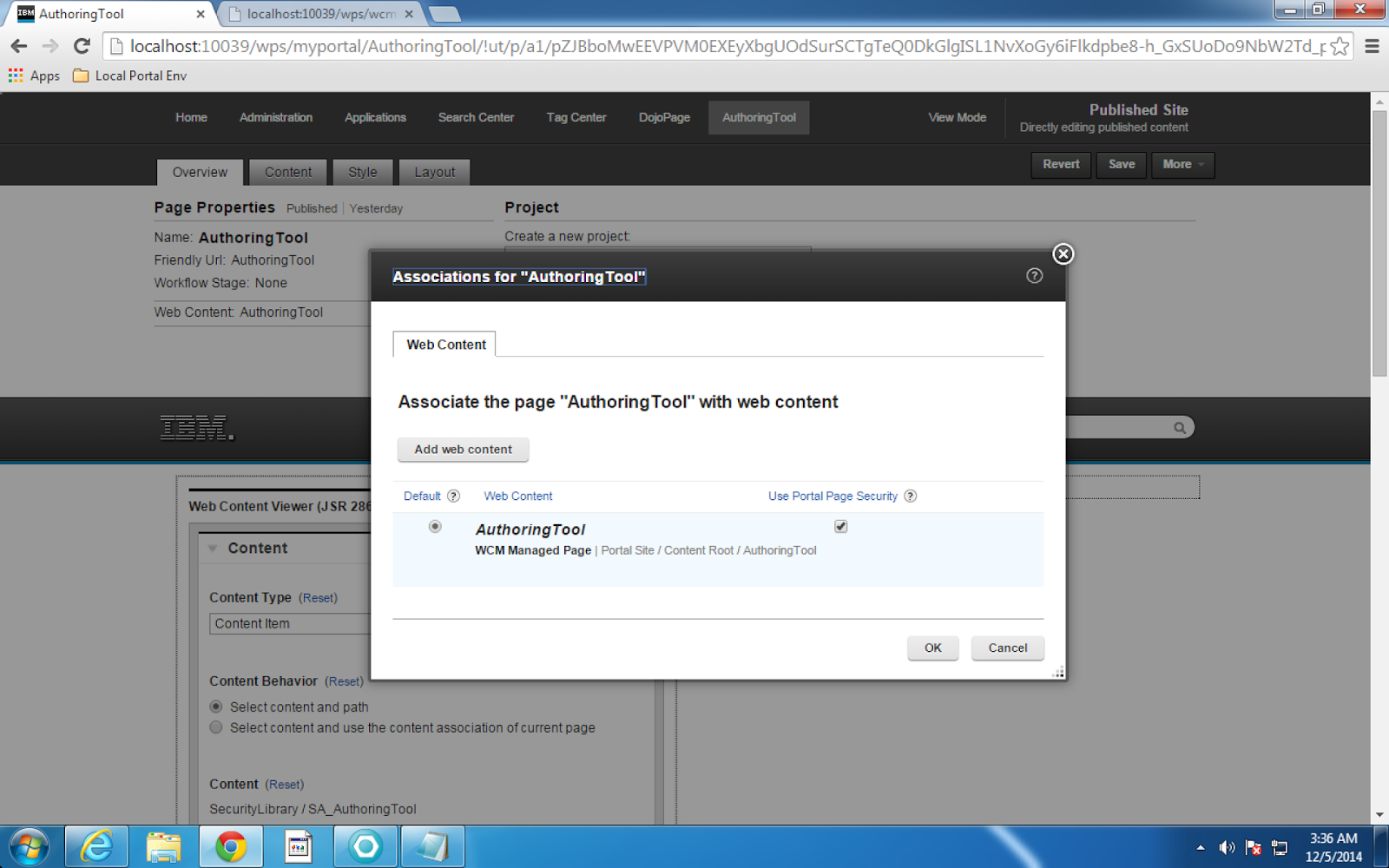
   B) Page association :-  You can navigate to page associations in edit page as given below

                                        Click on edit beside web content to change associations


Now click on add web content to change the library location


After changing the library click ok 


3) Pre render delivery :-  If we are going to display wcm content in a non-portal environment then we sue pre-render delivery. In this case all wcm content specified for site-area is changed to an html and saved to disk. Using a url we can render this static content. Prefer this approach if content changes periodically.

Draw backs:-
Search cannot be used
Personalization cannot be used
Navigator component cannot be used 

The security for the entire pre-rendered site is based on the connect.moduleconfig.cacher.rendereruser property as specified in the WCM WCMConfigService service using theWebSphere Integrated Solutions Console.

Step1 :- To create a static site you need to construct below url and enter in browzer

http://host_name:port_number/wps/wcm/connect?MOD=Cacher&SRV=cacheSite&sitearea=sitearea_name&library=library_name

http://localhost:10039/wps/wcm/myconnect?MOD=Cacher&SRV=cacheSite&sitearea=SA_AuthoringTool&library=SecurityLibrary

Table 1. CacherModule options
ServiceRequired ParametersOptional Parameters
SRV=cacheSite
Initializes prerendering for the given site area with a delay as given (in seconds).
sitearea=<site area name>DELAY=<delay>
LIBRARY=<library>
Note: If no library is specified, the default library is used, as specified by thedefaultLibrary property in the WCM WCMConfigService service.
SRV=flushSiteCache
Clears (flushes) the given site cache. Deletes all pre-rendered data.
sitearea=<siteareaname>
LIBRARY=<library>
Note: If no library is specified, the default library is used, as specified by thedefaultLibrary property in the WCM WCMConfigService service.
SRV=flushPageCache
Flushes the page from the site cache. The site area and page are determined from the request URL.
  
No SRV specified
The CacherModule attempts to retrieve the given page from the cache.


Step2 :- Accessing pre-rendered sites
To enable users to access the pre-rendered site through a Web Content Manager application, specify the connect.businesslogic.module.default.class property in the WCM WCMConfigService service using the WebSphere® Integrated Solutions Console.
Property name: connect.businesslogic.module.default.class
Value: com.aptrix.cacher.CacherModule


Step3 :- Enter below url to view it

http://localhost:10039/wps/wcm/myconnect/SecurityLibrary/SA_AuthoringTool

Monday, 8 December 2014

Creating tempates in websphere portal8.0

Templates :- You can create page templates which consists of basic structure which can be later reused for faster creation of pages

Step 1 :- Navigate to administration->managed pages->hidden pages and create your page template


Step2 :- Now click on new page from and enter the details for creating a new page.


Now click ok


Step 3 :- Now go to edit mode and add web content viewer portlet. If needed in edit shared setting set your content


Step 4 :- Now go back to Managed pages and try creating new page from template . Select your custom template.


Step5 :- Fill remaining details and click ok .Then a page will be created from Template1 with web content viewer added and content associated with it.


Custom single threaded java server

 package com.diffengine.csv; import java.io.*; import java.net.*; import java.util.Date; public class Server { public static void main(Str...